Saturday, March 11, 2017
Essential Visual Studio 2017 Tools & Extensions
Wrapper for many handy extensions such as File Nesting, Image Optimizer, Markdown Editor, Open Command Line & HTML Tools
Productivity Power Tools 2017
Another wrapper for extensions like Ctrl+Click GoTo Navigation, Power Commands for Visual Studio & Copy As Html
XAML Styler
Format your XAML on save - consistent and readble XAML Style implementations
CodeMaid
Cleanup and format your code. Multiple language support
NUnit 3 Test Adapter
Run NUnit tests in Visual Studio
...also consider xUnit unit testing
Cloud Explorer for Visual Studio 2017
View your cloud resources, inspect properties, and perform key developer actions from within Visual Studio
ResXManager
Central access to all ResX-based string resources in your solution
..any other essential extensions you can't do without? Share in the comments below.
Saturday, March 4, 2017
Xamarin Forms: ToolbarItem with Bindable IsVisible Property
Unfortunately Xamarin Forms doesn't have an IsVisible property on it's ToolbarItem control, so I had to hunt for a sample implementation.
A found this handy thread on the Xamarin forums.
Basically create a custom control that inherits from ToolbarItem, add a bindable IsVisible property, and add /remove the toolbar items as the property changes.
I made some minor modifications, and added the source code here
Happy Coding :)
Daily Links 4 Mar 2017
Building Single Page Applications on ASP.NET Core with JavaScriptServices
Realtime Databases with the Realm Mobile Platform
Penny Pinching in the Cloud: Running and Managing LOTS of Web Apps on a single Azure App Service
Xamarin Forms ListView Grouping
Xamarin.Forms Android Selected & Unselected Tab Colors
Xamarin Forms Tab Badge
Azure App Service Secrets and Web Site Hidden Gems
What is scope and closure in JavaScript?
Writing Jasmine unit tests in ES6
Getting Started With WebAssembly in Node.js
Parsing And Serializing Large Objects Using JSONStream In Node.js
Azure App Service Authentication in an ASP.NET Core Application
Saturday, February 11, 2017
Daily Links 11 Feb 2017
Introducing EasyLayout.Droid For Simpler Xamarin Android Layouts
Object.observe is dead, long live ES6 Proxies
A Probably Incomplete, Comprehensive Guide to the Many Different Ways to JOIN Tables in SQL
ASP.NET WebHooks V1 RTM (Link)
iOS 9-ify your Xamarin.Forms App
Opening App Store for Ratings on iOS and Android
iOS Code Signing
Aurelia E2E Testing with TestCafe
Json Forms
Complex AngularJS Forms in the blink of an eye
Angular Schema Forms
Generate Forms from Json Schema, with AngularJS
6 Do's and Don’ts for a Great Android User Experience
Improving HTTP Performance in Xamarin Applications
Building Android Apps with Entity Framework
Announcing Project Rome Android SDK
Friday, January 6, 2017
Sentinel Mutant Registration Facial Recognition System with Xamarin Forms and Microsoft Cognitive Services
First off, this is not a step by step tutorial for adding facial recognition to your cross platform xamarin mobile apps. For that, head on over to a blog post from Pierce Boggan: "Adding Facial Recognition to Your Mobile Apps". For another more in-depth article, head on over to "Cognitive Services - Face and Emotion Recognition in Xamarin.Forms with Microsoft Cognitive Services" from Alessandro Del Sole.
What it is, is a fun app that implements some of the face api from microsoft cognitive services - where you can subscribe to really nifty api such as face and emotion recognition. The free plans are really generous - 30k calls per month for the face api.
First and foremost, all the code can be found on github here.
Introducing: Version 1 of the sentinel mutant registration program
Because of Xamarin Forms, the sentinels can be running Android, iOS or Windows. The sentinels above look like they prefer Hololens.
All the MCS Face Recognition related code can be found in the share library FaceApi folder.
You will need to implement your own ApiKeyProvider class that supplies the MCS Face Api key that you have registered.
What can you do?
- Clear all face registrations. This will call the DeletePersonGroupCommand, which basically deletes all face recognitions within an identified group (in this case: all the mutants)
- Register a new mutant. You can do this in one of two ways. Scan their face using the onboard camera, or select from a picture the device has on file. This is done via the RegisterFaceCommand
- Identify a mutant. Does your sentinel program need to recognize mutants for capture - this function will scan a face using the camera or file on device, and confirm whether the mutant has been registered or not. This is done via the FindGroupPeopleCommand
- Scan mutant. Scan a face for facial attributes such as age and gender. Done via the DetectFaceCommand
Thursday, January 5, 2017
Daily Links 5 Jan 2017
Android: Saving Data: Reducing the size of App Updates by 65%
Announcing TypeScript 2.1
How Kotlin became our primary language for Android
Google Awareness API for Android: Query and React to Signals
Noobs guide to getting a Code Signing Certificate.
Leverage Joins in Entity Framework To Get Just the Data You Want
Troubleshooting Connecting to Xamarin Mac Agent
Creating Platform-Specifics in Xamarin.Forms
Custom Progress Reporting with Task
Request - Simplified HTTP client
Deploy the Android 7 Multi-Window Mode via Xamarin
My Take on an Azure Open Source Cross-Platform DevOps Toolkit
Brackets.io: Web Design Text Editor
Wednesday, December 7, 2016
Xamarin Forms: Customizing the Synfusion Kanban Control is as simple as 1-2-3
Following on from my previous post on getting started with the Kanban Control from Syncfusion, we’re going to have a look at customizing the kanban card template, binding the tap event on the card to execute a command and binding the card to a custom model.
As always, you can find all the source code here
Disclaimer: As of this writing, there are rendering issues with the Windows UWP implementation. A support ticket has be lodged with Syncfusion and it should be resolved with the next iterative release.
1) Providing a Custom Model
In the previous post, we used a KanbanModel to bind against. But you’re free to bind against any object, so long as the properties fire a NotifyPropertyChange event (class must implement the INotifyPropertyChange interface).
In the custom example, I’m using the CustomModel class, which inherits from the BindableBase class that comes out the box with the Prism.Core nuget package.
Properties look something like:
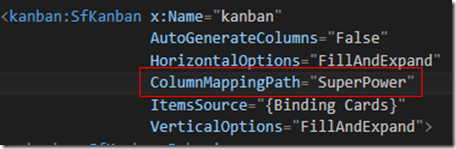
Remember that the columns in the Kanban control map by default to a ‘Category’ property. If you want the columns to map to a different property on the model, then set the ColumnMappingPath property on the SfKanban control
2) Customizing the Kanban Card
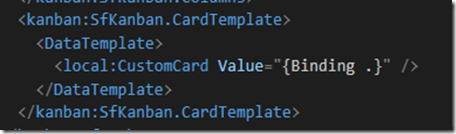
If you’re accustomed to any XAML technology, then customizing the kanban card should be familiar. The idea is that you supply a custom user control to act as a template when rendering the items for the bound collection. For a sample of a custom user control, check out the CustomCard.xaml user control in the source code. The only significant thing to note is the root element is a ContentView.
Once you have a template defined, then the only thing left to do, is to add it as the DataTemplate to the SfKanban control:
3) Binding the Tap Event to a Command on the ViewModel
It’s a common scenario that you want to perform a certain action when the user taps in a card. Currently there is no TapItemCommand property on the SfKanban control, but you can achieve the same thing by implementing a behavior.
The KanbanItemTappedToCommandBehavior can be found here.
Basically it takes the ItemTapped event from the card, and executes the command when the event fires.
You then bind the behavior to the SfKanban control like so:
The command on the ViewModel would look something like:
… and that’s it.
Happy Coding.

