Wednesday, July 26, 2017
Daily Links 26 Jul 2017
Going Global with Xamarin and Azure Cosmos DB
Universal Styling in Xamarin Form Apps
DynamicJS: Javavscript library to create physics-based animations
GraphQL vs. REST
Two ways to send data over HTTP: What’s the difference?
Cross-Platform Images in Xamarin.Forms Using SVGs
XAML Markup Extensions
Stop toggling IsBusy with NotifyTask!
Xamarin forms Tabbed page – UWP with images
(Now More Than Ever) You Might Not Need jQuery
Introducing npx: an npm package runner
Xamarin.Control – Xamarin.Forms MaterialEntry
Free Tools: Ultimate UI for Xamarin Toolbox and Control Configurators
A Collection of Interesting Facts about CSS Grid Layout
Multidex in Xamarin.Android
Xamarin Forms: Using Effects
Tuesday, July 11, 2017
Mobile Cross Platform Image manipulation with Xamarin (Android / iOS / Windows UWP)
These are:
- Resizing images – usually with a specific size in mind
- Knowing what size and existing image is
- Converting an image between png and jpeg formats
All the source code for the above can be found here, and the nuget package is available here.
All the code assumes images are in byte[] format – what you’d normally use for storing images in database repos etc.
As an aside – there’s a separate Xamarin Forms Value Converter nuget for binding a byte[] image to an ImageSource here
For all the code, you can choose to use the command interface, or the ImageTools interface, which wraps the functionality in explicit method calls.
Resizing an Image
This is the most common requirement for image manipulation.Images taken from disc, or using the camera are usually way to big to be included for wire transfers or light weight repo stores. Other usages are perhaps generating a pre-defined size thumbnail image.
IResizeImageCommand resizeCommand = DependencyService.Get<IResizeImageCommand>();
ResizeImageContext context = new ResizeImageContext { Height = 130, Width = 130, OriginalImage = image };
var resizeResult = await resizeCommand.ExecuteAsync(context);
if (resizeResult.IsValid())
{
image = resizeResult.ResizedImage;
}
Analyze an Image
Sometimes you just want to know what the dimensions of an image is, or what size it is, or in what orientation: var analyseImage = DependencyService.Get<IAnalyseImageCommand>();
var analyseResult = await analyseImage.ExecuteAsync(new AnalyseImageContext { Image = imageAsBytes });
if (analyseResult.IsValid())
{
var imageWidth = analyseResult.Width.ToString();
var imageHeight = analyseResult.Height.ToString();
var orientation = analyseResult.Orientaion.ToString();
var size = analyseResult.SizeInKB.ToString();
}
Convert an Image (Png and Jpeg support only)
I needed this recently because the pdf library I was using only supported jpeg files.var imageTools = DependencyService.Get<IImageTools>();
var convertResult = await imageTools.ConvertImageAsync(new ConvertImageContext(Logo, ImageFormat.Jpeg));
if (convertResult.TaskResult == TaskResult.Success)
{
ConvertedLogo = convertResult.ConvertedImage;
ConvertedSize = ConvertedLogo.SizeInKB().ToString();
}
Here I’m using the ImageTools dependency – you could just as easily have used the command as in the first two examples.
…. I haven’t tested all the platforms extensively, so if you find a bug, feel free to log an issue on github, or better yet: a pull request with the fix.
Thursday, July 6, 2017
Generate pdf documents for iOS, Android & Windows UWP using Xamarin Forms and Syncfusion Essentials–Part 2
Part 1 of the post can be found here
There I talk about getting started, and generating a simple pdf invoice.
The updated source code is in the same repository here
Code of interest is in the GenerateInvoiceCommand, the PdfGenerator & PdfExtensions
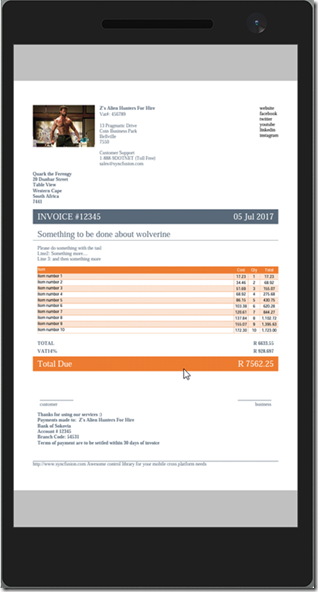
Today, I’m going to be talking about generating line items for the invoice. Here’s a screenshot of the generated result on all three platforms:
With Syncfusion Essentials Pdf, there are two main options for this: PdfLightTable & PdfGrid
After having implemented both, I don’t really see why both exist – the effort and functionality is about the same for both options.
I can say though, that PdfGrid definitely seems the more stable of the two – I found a few bugs in PdfLightTable along the way.
A look at the result: PdfLightTable on the left, and PdfGrid on the right
Some things to consider (included in the sample code above)
More documentation on pdf grid and light table can be found here
Adding data
Both types used direct data-source methodologies.
Sizing columns to content
Unfortunately this isn’t as simple as it should be. Static widths are easy – content not so much.
I created extensions for both LightTable and PdfGrid here (currently LightTable doesn’t appear to work)
Currently we have to cycle through all the column data, and measure which is the longest text, and then set the width to the max content width, hence the need for data, page width and font used.
Styling the table
PdfGrid has some built-in styles, as well as customization
LightTable you can customize the same as with PdfGrid – I created an extension to apply the most common properties to mimic the built-in style of the PdfGrid
Paginating the data
This applies to both table types, although again, LightTable seems to have some trouble honoring the PageinateBounds property – which is needed to the table doesn’t render over any footer data.
Drawing the pdf document
simple enough.
There’s tons more functionality in syncfusion’s pdf library – go check it out.
Clone the repo and play around with the code - and log an issue if you find any bugs in there :)
And don’t forget syncfusion’s awesome community license that offers their controls free for indie hackers and small businesses.
Tuesday, June 20, 2017
Daily Links 20 Jun 2017
Getting Started with Xamarin Forms for Mac Preview
Introducing ELXF: A UI Framework for Concise, Maintainable & Fast Programmatic UI's for Xamarin.Forms
Carousel Page In Xamarin.Forms
Why Azure Deployment Slots are Awesome and How to Use Them
Set up staging environments in Azure App Service
RabbitMQ: bindings
Optimize memory usage in Xamarin apps
Creating A Facebook Bot Using Microsoft Bot Framework
Xamarin and DevOps: Versioning your app
Material Design Html buttons
Xamarin.Forms Visual States with View Models
Adding Fluent Design Acrylic Material to UWP via Xamarin.Forms.
Adding Face Tracking and Live Recognition to your Android App
Raspberry Pi Online Simulator and Azure IoT
Thursday, May 25, 2017
Daily Links 25 May 2017
ADDING WEBAPI & OAUTH AUTHENTICATION TO AN EXISTING PROJECT
Javascript async functions
Add Yap to Your App with Bot Framework
Developing Enterprise Apps using Xamarin.Forms
Xamarin.Tips – Creating a Material Design Button in iOS
Making Your Xamarin.Forms Apps Accessible
JWT Validation and Authorization in ASP.NET Core
How to Send and Receive SMS Messages Using C# and ASP.NET
Android 64k method limit in Xamarin
Enabling Deployment Slots To Safely Deploy Applications To Azure App Service
Xamarin.Tip – iOS Material Design Navigation Bar
Xamarin Forms - Change a Switch's True/False Colour
Full page camera in Xamarin.Forms
Xamarin and DevOps: Setting up your Android CI
Running Xamarin UITests Locally
Tuesday, May 16, 2017
Xamarin Forms: GridView Control
I wanted to show a list of stuff in a template of an item that was in a ListView.
Turns out hosting a ListView inside a ListView doesn’t work out so well. Besides it being a rocket ship when I only needed a small car, it just doesn’t work. You see, the ListView has some sizing issues that doesn’t make it a great candidate for said scenario.
Now unless I’m missing something here (which is quite likely), I couldn’t really find any Xamarin Forms control that hosted a simple list of items, without needing properties like grouping, selecteditem etc.
After some searching on the interwebs, I came across this really simple example of what I needed from Chase Florell. (I’ve since happened upon this contribution by Daniel Luberda, which also looks pretty decent). It met my very basic requirement of a simple list of stuff, minus some handy bindings, so I set out to edit the code.
You can see the results (source code and sample project) here
Basically, you can create a tile-like layout with N many columns. The content of the “tiile” can be any template you like.
Sample Xaml:
The control also supports ItemTappedCommand, which will call a delegate and pass the selected data item as a parameter.
The default for MaxColumns is 1 – which will give you a simple list as illustrated at the top of the post. More columns will give you something like:
I wouldn’t use this implementation for more than about 20 or so data items, as there is no cell recycling as you would get in a ListView, but for very basic scnenarios, I’ve found this simple implementation good enough.
As a side note, I’ve also moved the previously mentioned Bindable IsVisible ToolbarItem control to the linked repo, in addition to a few other very basic controls like an Editor that expands as you type, a ListView with ItemClickCommand and default RecycleElement mode, a floating label pattern Entry (pending), and a simple WrapLayout (which I’ve used in combination with an AddStringEntry to create a Tag List) - which I’ll cover in subsequent posts as I find the time.
Note: FlexLayout & RelativeLayout are new controls coming in Xamarin Forms 3.
Xamarin FTW
Tuesday, May 2, 2017
Daily Links 2 May 2017
Infinite Scrolling ListView For Xamarin.Forms App Using Behaviors
How We Do Database Integration Tests With Entity Framework Migrations
Entity Framework Migrations - How to create a Unit Test to Ensure Migrations Model is up to Date?
Integration Testing Entity Framework with Migrations
TypeScript at Slack
Using memory cache in ASP.NET Core
Setting up a Shiny Development Environment within Linux on Windows 10
ASP.NET Core Lazy Command Pattern
Xamarin.Tips – Removing the Bottom Border of Your iOS Navigation Bars
Using Storyteller with ASP.Net Core Systems
Xamarin: Choosing CPU Architecture and SDK Version
Turn your Postman Collection into a Microsoft integration
Killer Visual Studio 2017 Features for Mobile Developers